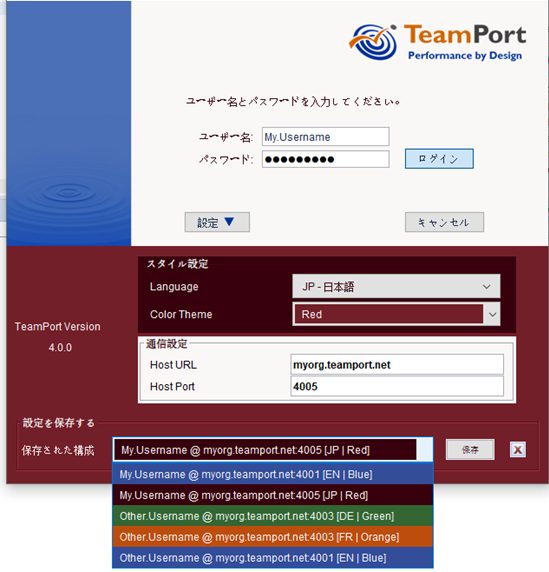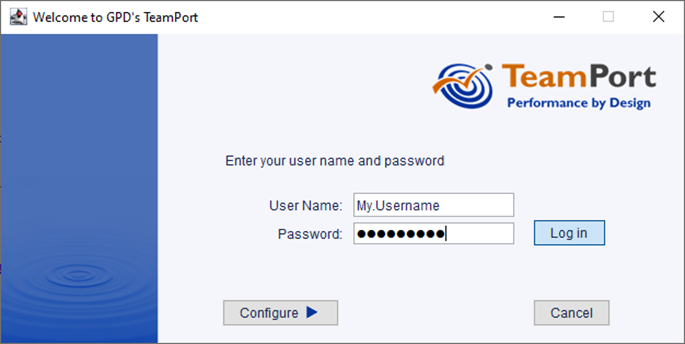
Designer's Login dialog comes in two forms:
Normally one will use the collapsed login dialog to enter their user name and password prior to accessing a TeamPort project.
To log in, enter your user name and password in the areas provided and select Log in.
More advanced configurations are available when the Configure button is selected:

Two areas of the expanded Login dialog serve different purposes:
The Language and Color Theme affect the look and feel of TeamPort Designer but will have no impact on the model. The Language selected will impact menus, labels, and other controls in the TeamPort Designer and Forecast applications. The Language will have no impact on model element names and other aspects of the model being created. The Color Theme will display different background colors for the application, tool bars, and other controls.
TeamPort Communication Properties can be changed based on your license and guidance from a GPD representative. These settings affect how TeamPort Designer and Forecast communicates with the TeamPort Server.
The Host URL is the internet address of the TeamPort Server. If the Teamport Server and TeamPort Designer are running on the same machine use localhost to bypass external networking provisions that may slow communication.
The Host Port refines the definition of the network connection for the software.
A set of the username, style, and communications settings can be saved and easily recalled. These sets are stored locally on the client computer and not on the server. Advanced users may access many servers across various complex projects.